
Bring Your Own Channel (BYOC) lets you integrate any digital messaging platform with CXone. It provides a generic integration option for platforms that CXone does not yet support.
This page leads you through the basic implementation steps. The goal is to set up a proof of concept that you can further customize and test.
Be sure to browse through this entire document before starting. This will help you understand the full development effort and how you need to plan technical resourcing.
A BYOC integration works via REST API. There are two sets of APIs that you must work with. The first set are the APIs that CXone will use to interact with your integration service (middleware). The second set are the standard Digital Engagement APIs, which your service will use to interact with the CXone platform. These are explained in steps 2, 3, and 5 on this page.
BYOC is a custom option for integrating with another communications platform. There are many types of digital platforms that you may want to integrate with, so the term "channel" may not make sense for every possible platform. It is, however, the generic term that fits with the CXone platform and its Digital Experience infrastructure. So, the term "channel" refers to the platform you're integrating with CXone. Then, depending on the platform, an instantiation of the channel is a "digital point of contact" in CXone.
For example, if you were integrating WhatsApp as a BYOC channel:
WhatsApp would be the "channel" that you're integrating.
The different phone numbers your company uses for WhatsApp would each be a digital point of contact in CXone.
The Bare Necessities LLC wants to support a new social media platform called Junglebook. This is a regionally-popular platform that's growing quickly. The Bare Necessities LLC wants their agents to interact with contacts through the company's Junglebook profiles. BYOC lets the agents respond to Junglebook posts through their CXone agent client. They have two Junglebook profiles for their two company locations: Monkey Kingdom and Man Village. In this case, Junglebook is the BYOC channel they want to integrate with CXone. Their two Junglebook profiles are digital points of contact.
After a planning stage, the developers implement the different back-end components:
First, confirm that BYOC is right for you. Consider the following questions:
Second, understand and plan-out your development effort:
The majority of work is on the back end. Developers must implement APIs for three services to communicate with each other:
This includes implementing authentication, APIs for managing digital points of contact, APIs for passing messages back and forth, hosting a middleware service, and so forth.
Third, consider your CXone setup:
This step is split into two parts, which help you set up authentication between your middleware and CXone. This allows both sides to generate access tokens, which they use to make API calls bi-directionally.
End goal:
Remember, for a production implementation, build a robust method of storing and saving credentials. They need to be properly segmented if you have multiple CXone tenants. This ensures that communication for an individual integration always uses instance-specific credentials. Issues involving mismatched credentials can often be difficult to troubleshoot.
You need to implement an OAuth 2.0 back-end token endpoint on your middleware. It needs to accept a client ID/client secret and return a token. Refer to the Getting Started page for a list of useful OAuth resources.
Key points for this task:
Consider using an existing library.
Your middleware should generate a client ID and secret.
For a production-level integration, you may want to create a mechanism to generate these credentials. You may also want to include this functionality in a middleware UI (see step 3 for more information).
For a proof of concept, it may be simpler to hard code these values.
You, or an admin, will enter a client ID and secret into the BYOC integration settings (step 4).
CXone will use the token you return for subsequent API calls. This allows your middleware to continue verifying API calls from CXone.
The default endpoint path is {your-middleware-base-Url}/1.0/token.
This endpoint should be publicly hosted; it cannot run on localhost.
Refer to the Getting Started page to learn how to implement NiCE global authentication.
If you're building a proof of concept:
You may only need to register as a back-end application. This may be preferable as you can receive credentials from NiCE faster than registering a public application.
If you're building a production application with a front end:
You may also want to register a public application. This means you're implementing OpenID Connect (OIDC) and could more easily add role-based access control (RBAC) for which users can perform CRUD operations on the channel. RBAC may also be useful for future customizations like giving access to certain reporting data from the external platform.
Key points to consider:
You should implement APIs on your middleware for creating and managing points of contact for the BYOC integration. The APIs you implement here allow administrators to manage these digital points of contact; also, most implementations include a UI to do so.
At a minimum, you must call the POST /channels API once to create a digital point of contact for the BYOC integration. You may not need to implement the other APIs, depending on your use-case.
Be sure to choose an icon when creating your channel. Without an icon, your channel may not function properly (replies from the agent may fail). Set the value for the externalPlatformIcon field in the POST /channels API to a value from the enum list. Look in the endpoint documentation for a list of acceptable values. This icon is used if you also create a UI for the middleware; be sure to provide an icon in your POST request, even if you won't also build a UI.
Continuing the Junglebook example from earlier on this page, the BYOC channel is Junglebook, and individual Junglebook profiles are points of contact for the channel.
If The Bare Necessities LLC opened a third location, they could create a third Junglebook profile for this location. After creating this third profile, they would also create a point of contact for the third profile using the endpoints described below.
Also, keep in mind that you likely want to implement a UI for administrators to perform these actions, like an admin panel. This depends on your use-case, but nonetheless should be considered as you design and implement the middleware.
This "admin panel" allows administrators to manage the digital points of contact (along with any other features you build into the middleware) using a UI instead of calling the APIs directly. Also, it allows administrators to open this UI directly from the CXone interface.
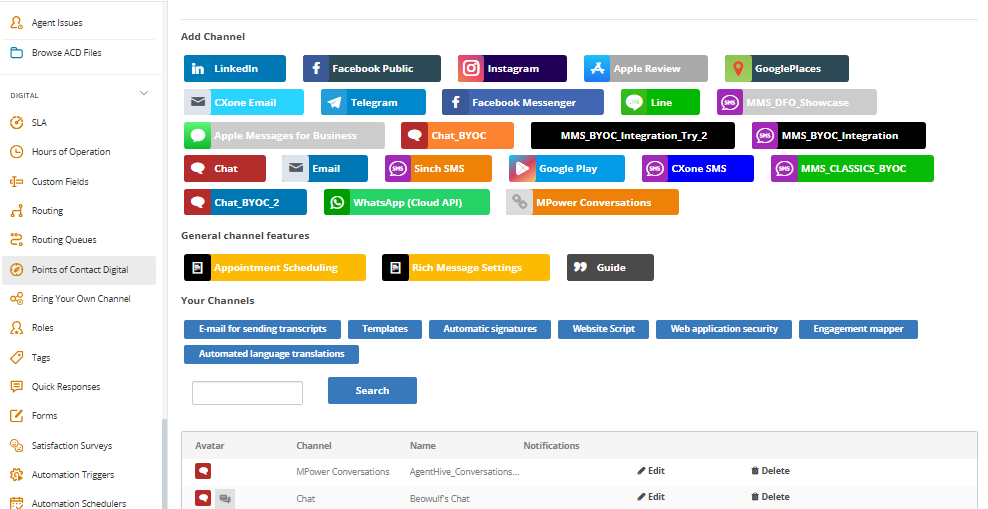
In CXone, the Points of Contact Digital page is the central location where you manage features and settings for all digital points of contact. On this page, you also launch the middleware UI. You can access the Points of Contact Digital page by clicking the app selector  > ACD > Points of Contact Digital.
In the following screenshot, you can see several BYOC channels in the list of icons, like Chat_BYOC or Chat_BYOC_2. This screenshot also shows why you must include an icon when creating your channel with the POST /channels API.
End goal:
Before you begin implementing the APIs for sending messages, you need to have basic routing components set up in CXone. This will allow you to test the functionality. You must have the following set up:
Refer to this online help page for more information.
Important
Implement the below APIs for your middleware to send and receive messages from CXone. Best practice is to first simulate the message flow via Postman using the below APIs. This lets you test independently to ensure each communication piece functions correctly; it also helps isolate issues.
Inbound Message Flow
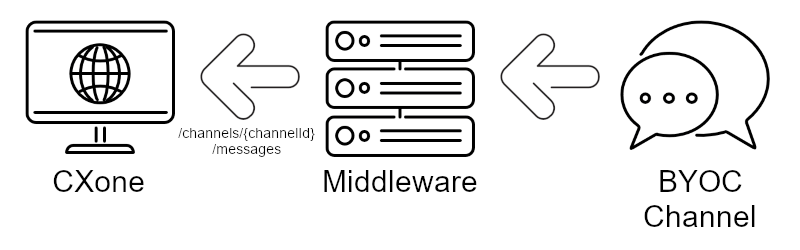
When a new message occurs on the BYOC channel, use the following endpoint to send the payload to CXone. Calling this endpoint creates a new message on the CXone platform. You must also use this endpoint for subsequent messages.
Outbound Message Flow
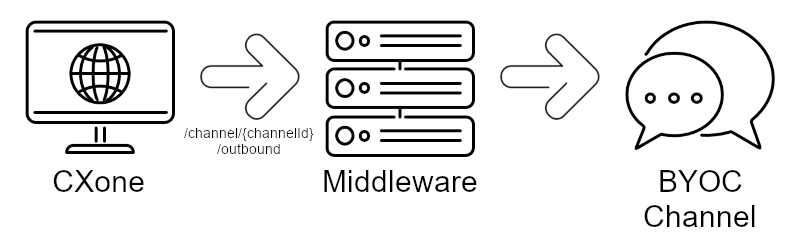
When an agent sends a message from CXone, it does so via the following API. Your middleware needs to receive payloads from CXone via this API:
End goal:
If you want to support agent-initiated outbound messages, you must implement the below endpoint. Before sending an outbound message, CXone calls this API to validate that the recipient is valid. Depending on the response code, CXone sends or stops the message from sending.
Your middleware must return a 200 and 400 response code. You must also set up the appropriate validation according to the external platform you're integrating with.
For example, if an agent enters an email address your middleware deems invalid, it would return a 400 code. This would stop the email from sending.
The following are common concerns that integrators encounter:
You may see NiCE personnel refer to the middleware as an integration box. It could refer to your single service or set of microservices that implement the three main features, inbound messaging, outbound messaging, and the settings UI. The integration box is mainly responsible for mapping the CXone digital platform and the external channel.
The CXone digital platform uses Integration Box URL as a hostname for each endpoint. To ensure compatibility and avoid conflicts with CXone internal routing infrastructure, the defined URL must meet the following criteria:
Not an AWS API Gateway Host:
The URL must not point directly to an AWS API gateway default host. Specifically, it should not contain:
amazonaws.com
.execute-api.
Recommendation: If you are using AWS API gateway, configure a custom domain name for your API gateway endpoint. This ensures better flexibility and avoids potential conflicts with the CXone system.
Valid DNS Record:
The URL must resolve to a valid A record in the Domain Name System (DNS).
Protocol Requirements:
The URL must use a secure protocol, like https://.
Reachability:
The URL endpoint should be publicly accessible and capable of receiving HTTP requests from CXone servers.
| ID | Details |
|---|---|
| client_id | Along with the client_secret, these are produced by CXone when you generate an access token. This token allows you to make API calls as part of OAuth2.0. |
| brandId | The Digital Experience equivalent of a business unit ID. |
| tenantId | The ID of the CXone tenant. This is the tenant on which the chat channel was created. This is a longer alphanumeric string, such as: 86f85ac-aaed-48e4-9b90-89e318675309. |
| businessUnitId | The ID of the business unit on which the chat channel was created. You can find this in CXone under ACD > Business Units. |
| channelIntegrationId | The ID of the digital chat channel created in Digital Experience. To set up a BYOC channel, you must create or use an existing digital chat channel. |
| idOnExternalPlatform | An identifier for any entity on the external platform. For example, this could be the ID of a Facebook post, email recipient, or a WhatsApp user ID. |
| ownerUserId | The ID of the user who created the digital chat channel. |
| threadId | A group of messages or contacts, depending on the type of channel. A threadId identifies an entire conversation. |
A commonly-used field in the BYOC APIs is idOnExternalPlatform. This generally identifies a thread on an external platform, such as an ID of a social media post. This ID doesn't necessarily need to be a UUID or in a specific format since it's a string. It does, however, need to be unique. For testing, you may want to set it to some kind of human-readable ID.
Use Case:
You set up integrations with Instagram and Facebook. Both platforms use GUIDs within the context of their own platform. Therefore, when the messages are handled by your CXone system, there are errors and "collisions" when IDs from both platforms are coincidentally the same. The solution could be to append the contact's email address to the Instagram GUID to ensure there are no errors or mismatches.
This should be a GUID across all other IDs. For example, it'd be confusing if you had a threadid that was the same as an authorid.
This can't be the same as another ID of the same type of object.